
1. Click on Inventory and select Purchase Receipt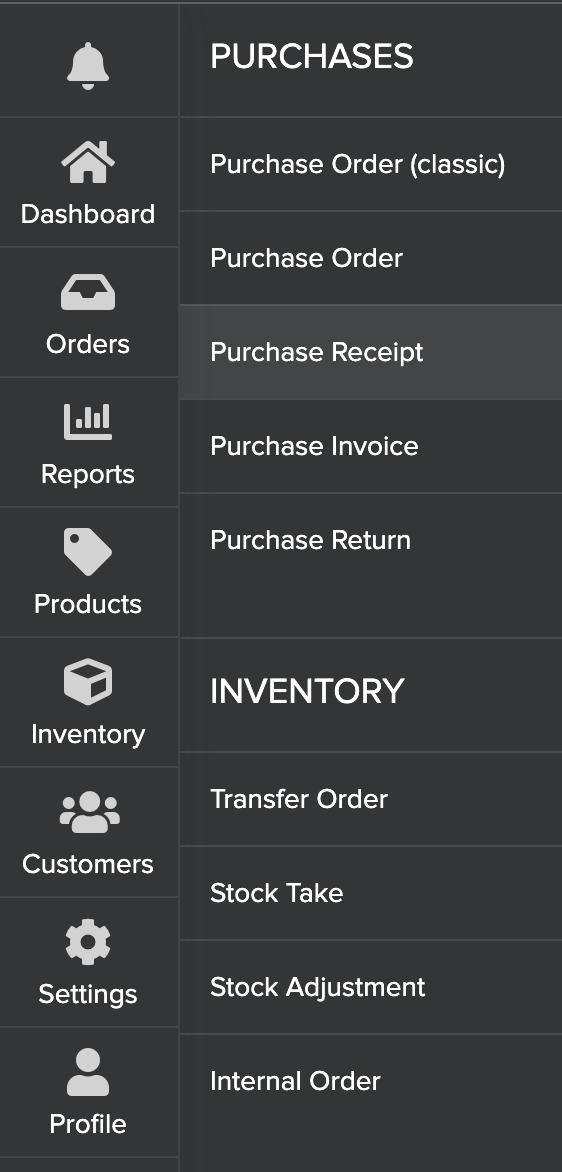
2. Select the Purchase Receipt for which the Purchase Invoice is to be created. Click on 
and select Create Invoice. This will take you to the Purchase Invoice page 3. Click on Create. After the Draft is created, click on the attachment symbol and upload the invoice.
4. AI will read the invoice data and update the Supplier Invoice Total, Supplier Due Date, and Supplier Invoice Number.
5. Click on Invoice and confirm by clicking on Yes, Invoice it.
NOTE:
- The price, tax, and charges are matched as per the invoice in the Purchase Receipt itself.
- In case the price, tax, or charge is not updated in the Purchase Receipt, then an authorized user can still update it in the Purchase Invoice
- If the GST No or Totals mismatch, or if the price, tax, or charge is modified,d then it will trigger an approval mechanism. Purchase Invoice will be created and synced only after approval