Create a new Purchase Order
Print
Modified on: Tue, 30 Jun, 2026 at 7:35 PM
1. Click on Inventory and select Purchase Order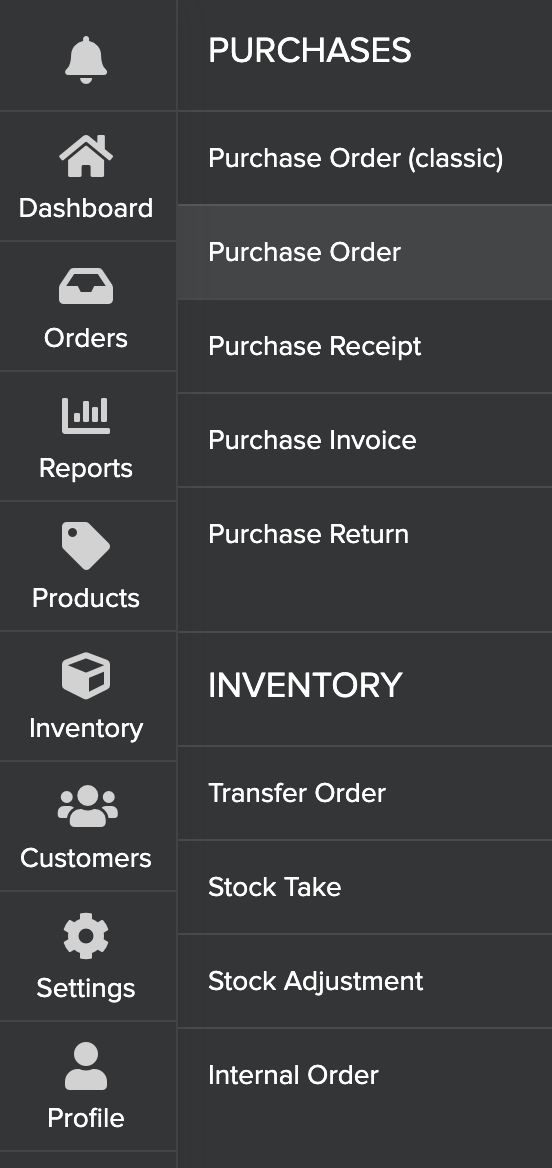
2. Click on Add New Purchase Order and update the necessary details
Supplier *- Select the Supplier to whom the PO is raised
Bill to Location *- Select the billing location where the invoice has to be raised
Ship to Location *- Select the location where the goods have to be shipped
3. Enter the following details
Date of Purchase order *- Date of PO raised. Automatically considers the date of order
Expected By - Select the date by which you need the goods to be delivered
Currency *- Automatically taken from your location settings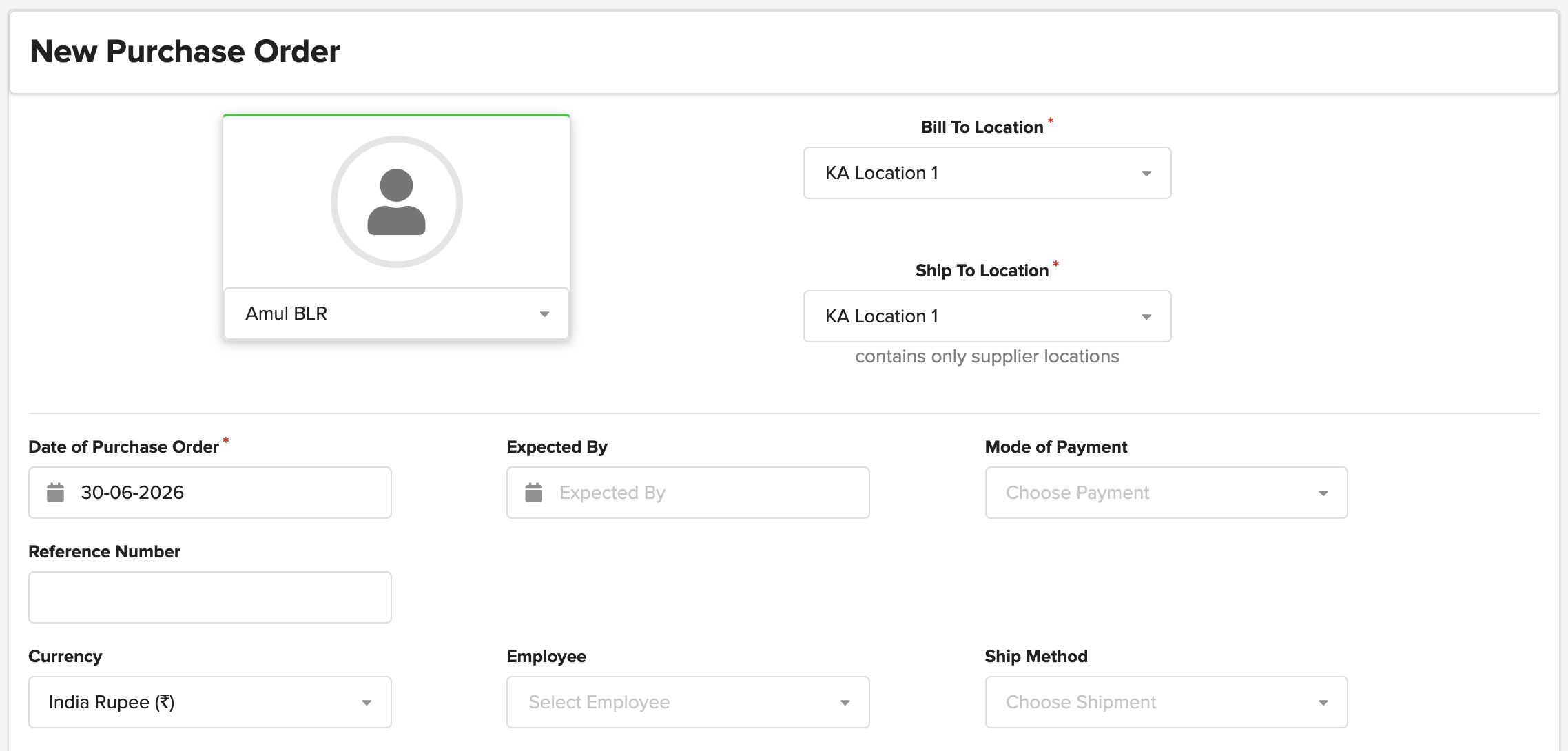
4. Start adding the products by following the method below:
Navigate to the Search Products bar
Search the product by typing the product name or by using a barcode
Enter the quantity in the "Enter Value" tab and click on Add. (Your current in stock will be available in the "In Stock" column)
Complete adding all the products by following the steps above.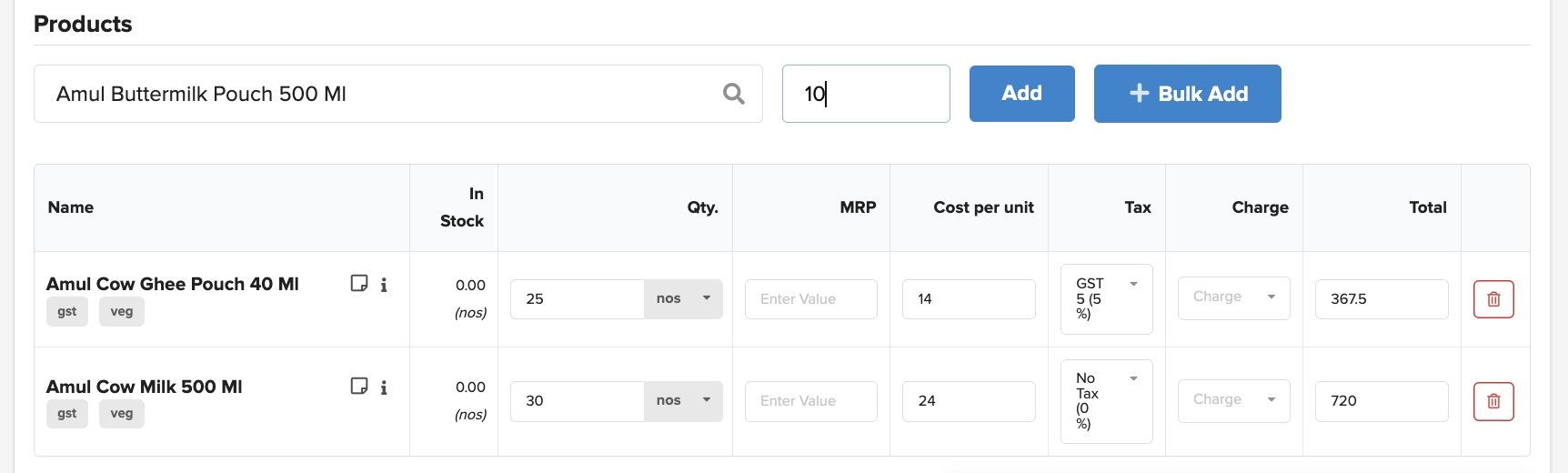 Note: MRP, Cost per unit, Tax, and Charge are editable only if the user has permission
5. Cross-check the products and quantities required.
6. Click on Save to create a draft. This will not send the order to the Supplier. If you are sure of this order and want to raise the order directly, then skip this step and proceed to the next
7. Click on Order to complete raising your order. Order status changes to ORDERED and will trigger an email to the Supplier to process your order
Note: If the user has permission and changes the cost price, tax, or charges, then it will trigger an approval mechanism. PO will be marked as ORDERED only after the changes are approved
Did you find it helpful?
Yes
No
Send feedback Sorry we couldn't be helpful. Help us improve this article with your feedback.
